Home>Devices & Equipment>The Evolution of Recording Equipment: From Analog Tape Machines to Digital Workstations
Devices & Equipment
The Evolution of Recording Equipment: From Analog Tape Machines to Digital Workstations
Published: February 19, 2024
Explore the journey of recording tech from analog tape to digital workstations, highlighting key innovations that shaped the audio industry.
(Many of the links in this article redirect to a specific reviewed product. Your purchase of these products through affiliate links helps to generate commission for AudioLover.com, at no extra cost. Learn more)
Table of Contents
The journey of recording equipment from its rudimentary beginnings to the sophisticated digital age is a fascinating tale of innovation, creativity, and technological breakthroughs. This historical overview captures the essence of how recording devices have evolved, transforming the way music, podcasts, and various forms of audio content are produced today.
The Dawn of Recording: Mechanical Marvels
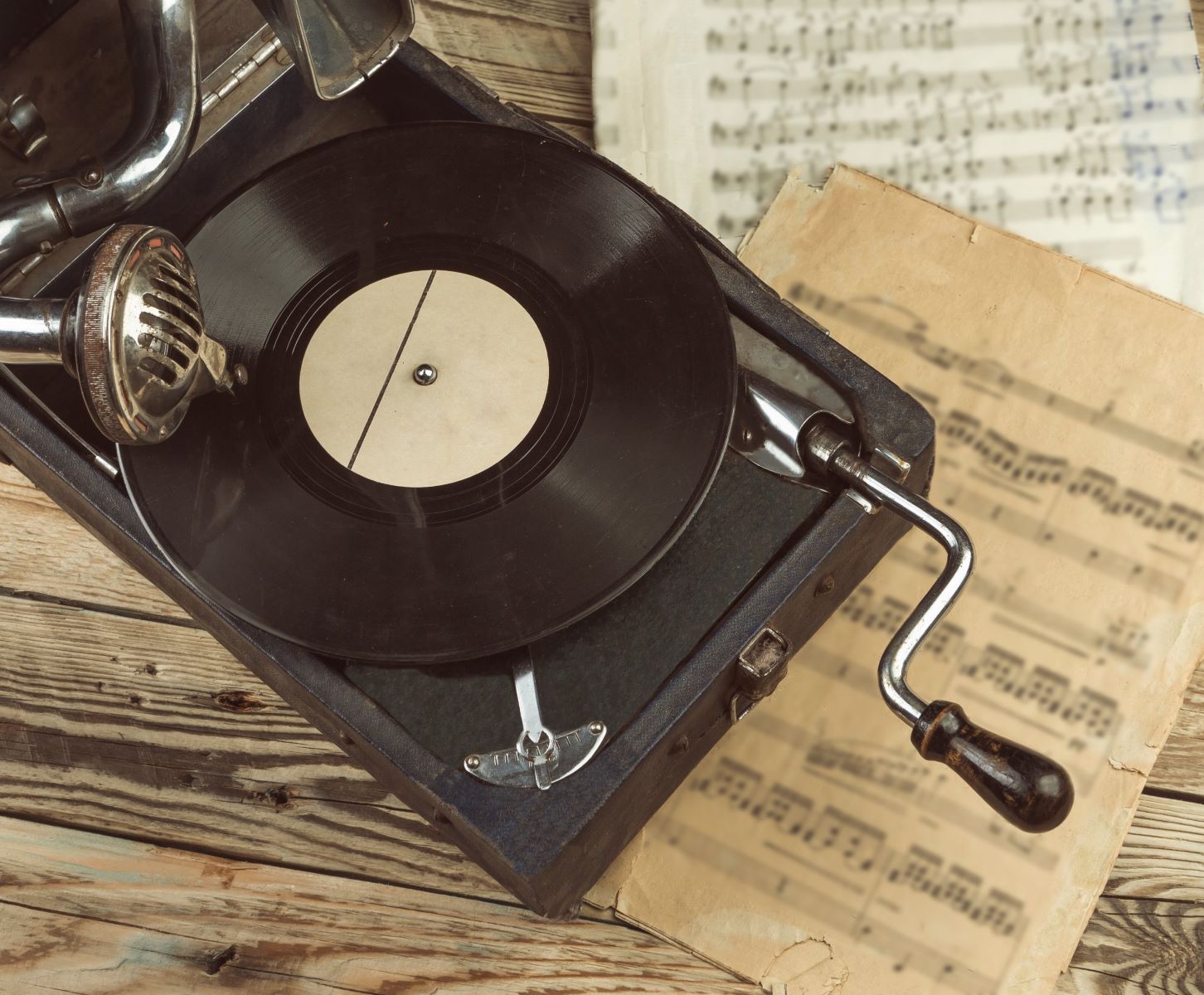
In the late 19th century, the first mechanical recording devices emerged, capturing sound without the need for electricity. The Phonograph and Graphophone laid the foundation, using cylinders and later discs to engrave audio vibrations. These devices were groundbreaking, allowing for the first time the playback of recorded sound.
The Era of Magnetic Tape
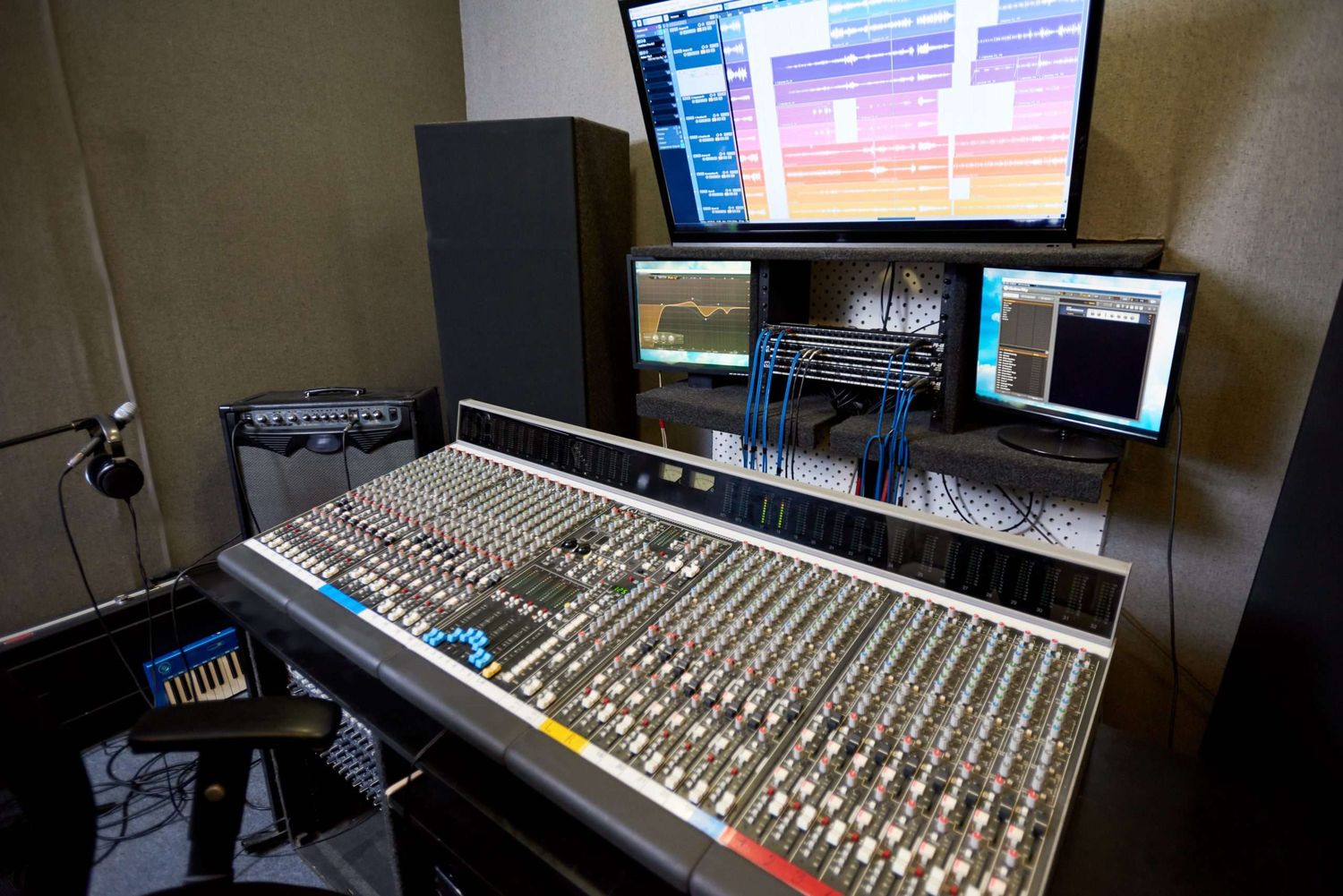
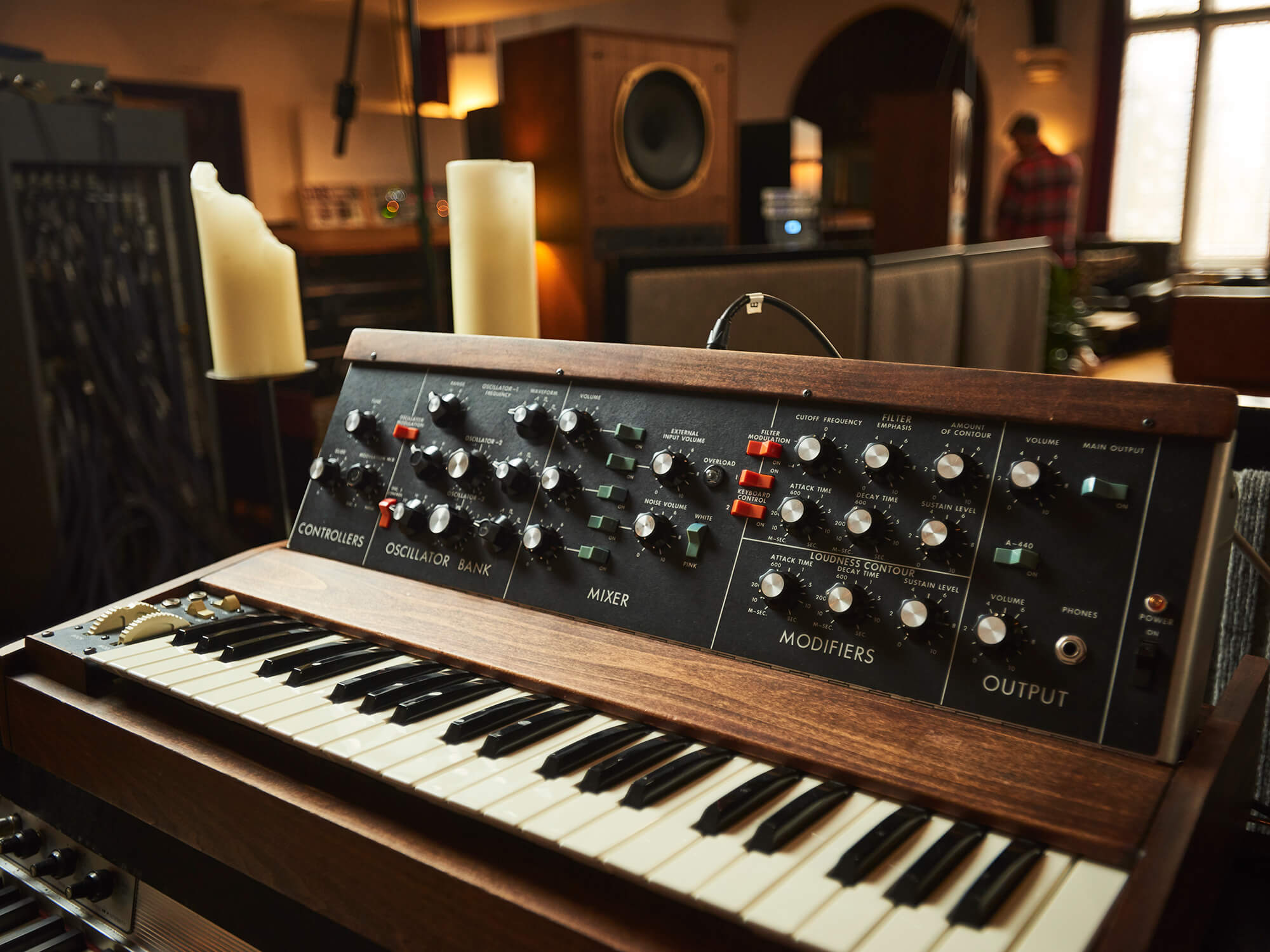
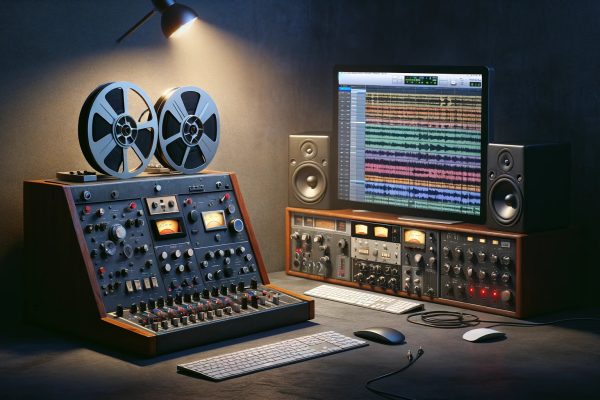
The introduction of magnetic tape in the 1930s revolutionized recording, offering improved sound quality and the ability to edit audio. The German invention of the Magnetophon brought recording into the realm of high fidelity. This era saw the standardization of tape speeds and formats, with the Reel-to-Reel system becoming a studio staple. Analog tape machines were the backbone of professional recording studios, capturing the sounds of legendary artists and albums.
The Birth of Multitrack Recording
Les Paul’s innovation of multitrack recording in the 1950s was a game-changer, allowing separate recording of different sound sources on the same tape. This technique paved the way for complex recordings, enabling artists to overlay tracks and create intricate soundscapes. Studios became creative playgrounds, with equipment like the 8-track tape recorder pushing the boundaries of what could be achieved sonically.
The Rise of Solid-State Electronics
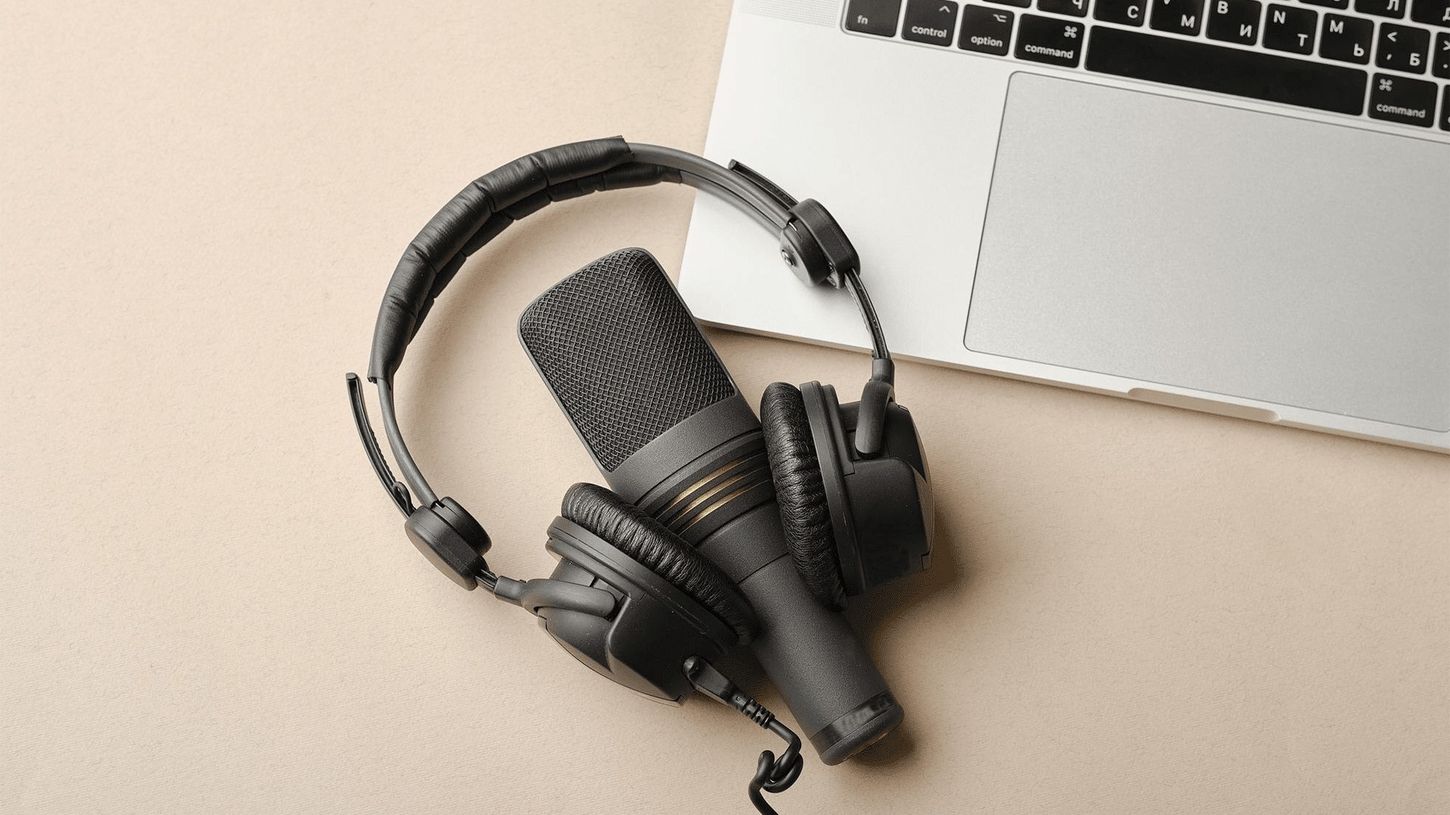
Transitioning from vacuum tubes, the 1960s and 70s marked the rise of solid-state electronics in recording equipment. This shift led to more reliable, durable, and portable devices. The condenser microphone, known for its sensitivity and wide frequency response, became a studio favorite, necessitating the use of an audio interface to provide the required phantom power.
The Digital Revolution
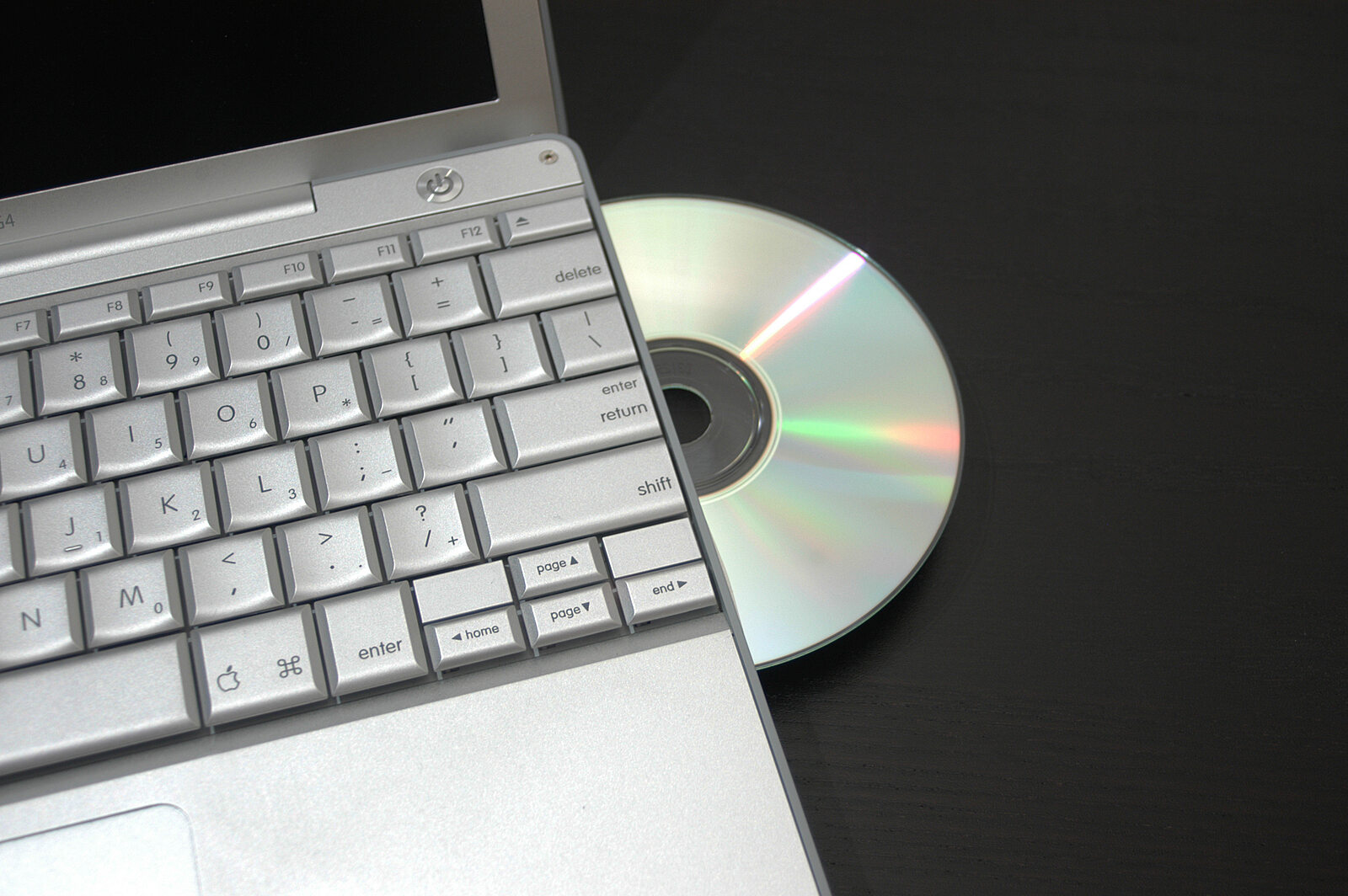
The 1980s heralded the digital revolution in recording technology. The Digital Audio Tape (DAT) and Compact Disc (CD) introduced digital recording to a broader audience, offering unprecedented sound clarity and editing capabilities. The ADAT format further democratized recording, allowing home studios access to professional-quality digital recording.
The Home Studio Era
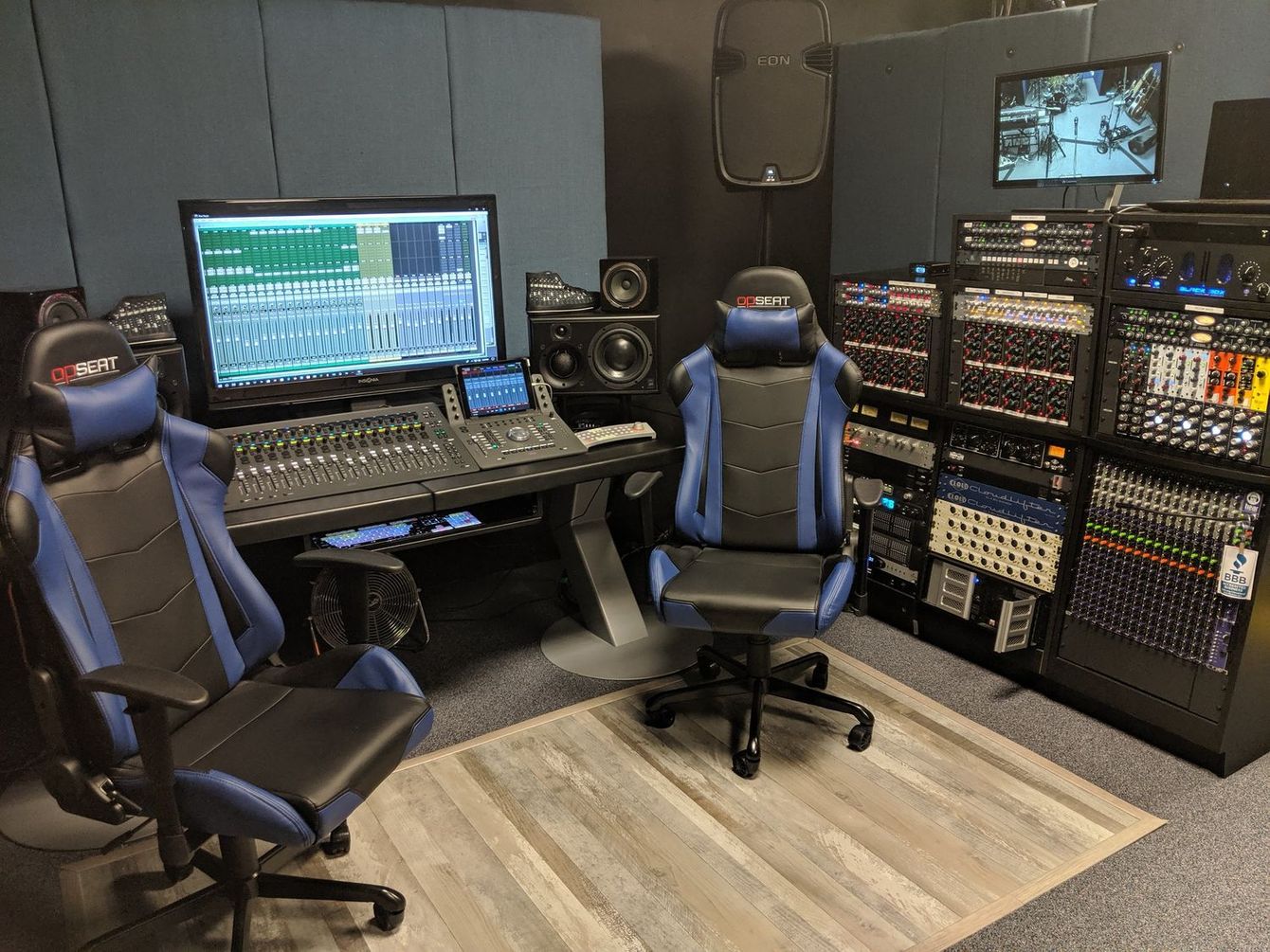
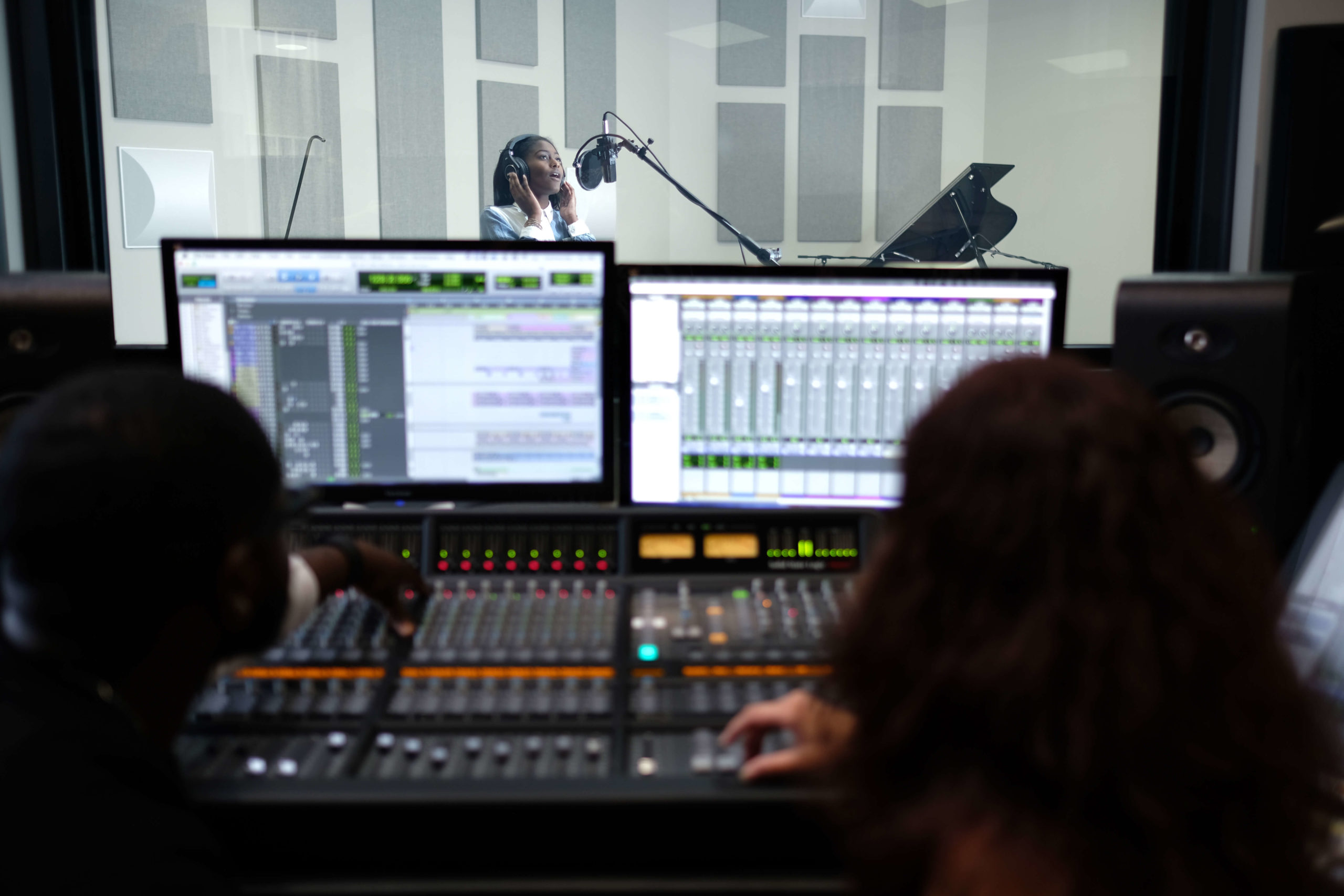
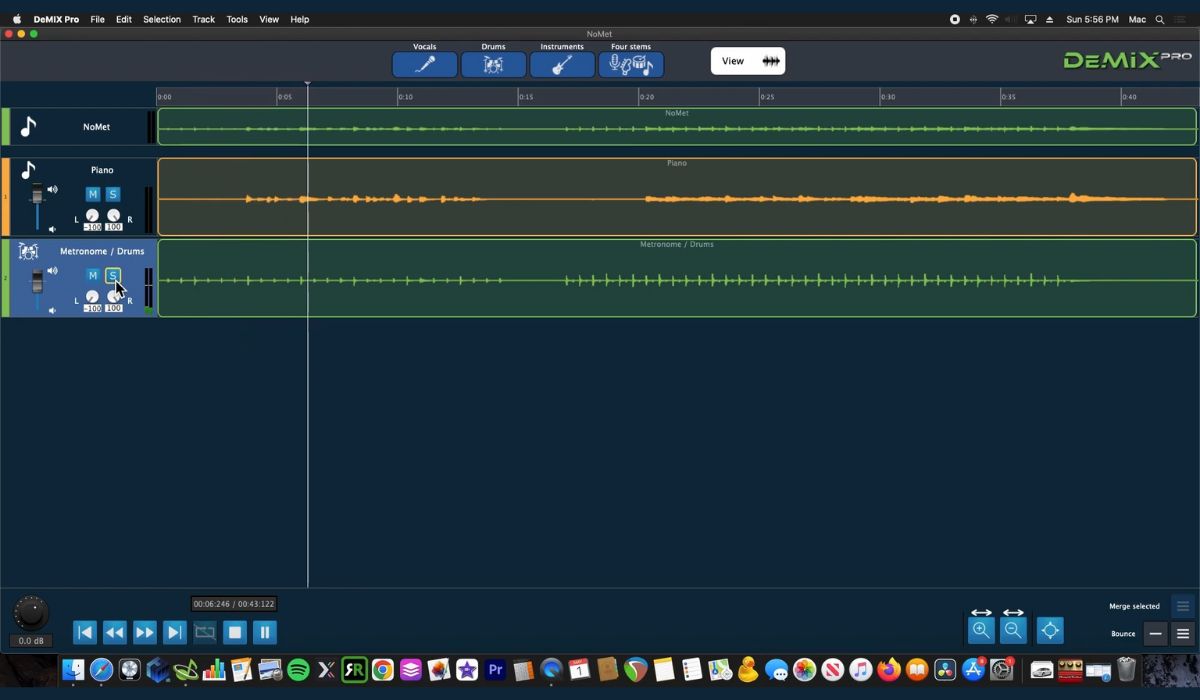
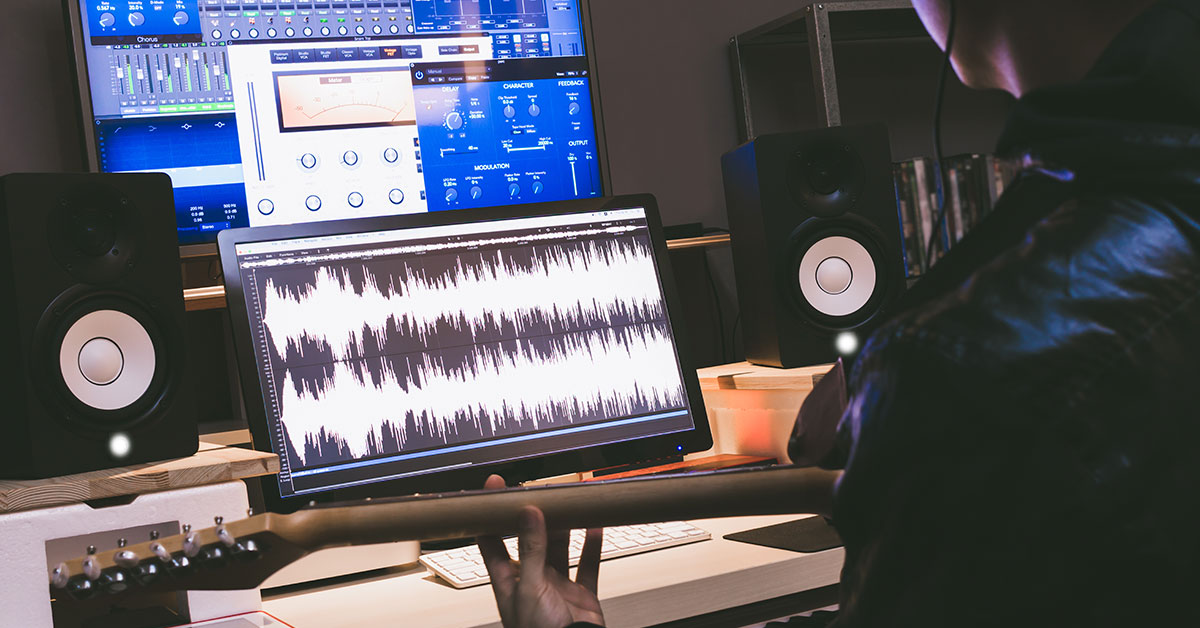
The advent of the Digital Audio Workstation (DAW) in the late 90s and early 2000s transformed the recording industry, making it accessible to anyone with a computer. The best audio interface for PC became a sought-after piece of equipment, bridging the gap between analog instruments and digital recording environments. The DAW enabled endless tracks, virtual instruments, and real-time editing, marking a significant departure from the limitations of tape.
The Impact of Software and Plugins
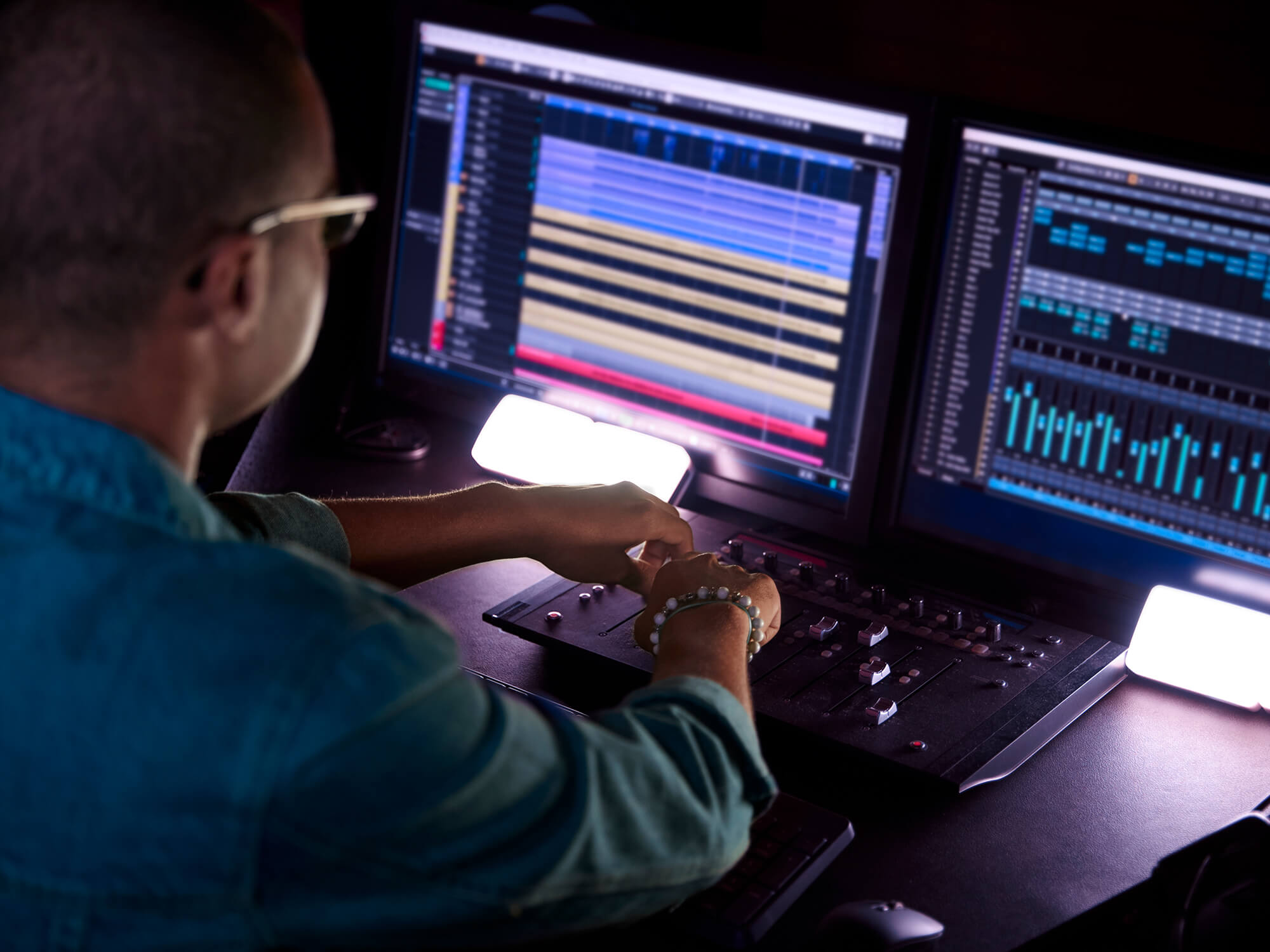
Recording software and plugins expanded the creative possibilities, emulating classic hardware and introducing new sound manipulation tools. The best way to record with an audio interface became a common query, as home producers sought to achieve professional sound quality. Software like Pro Tools, Logic Pro, and Ableton Live became industry standards, offering powerful recording, editing, and mixing capabilities.
The Modern Recording Landscape
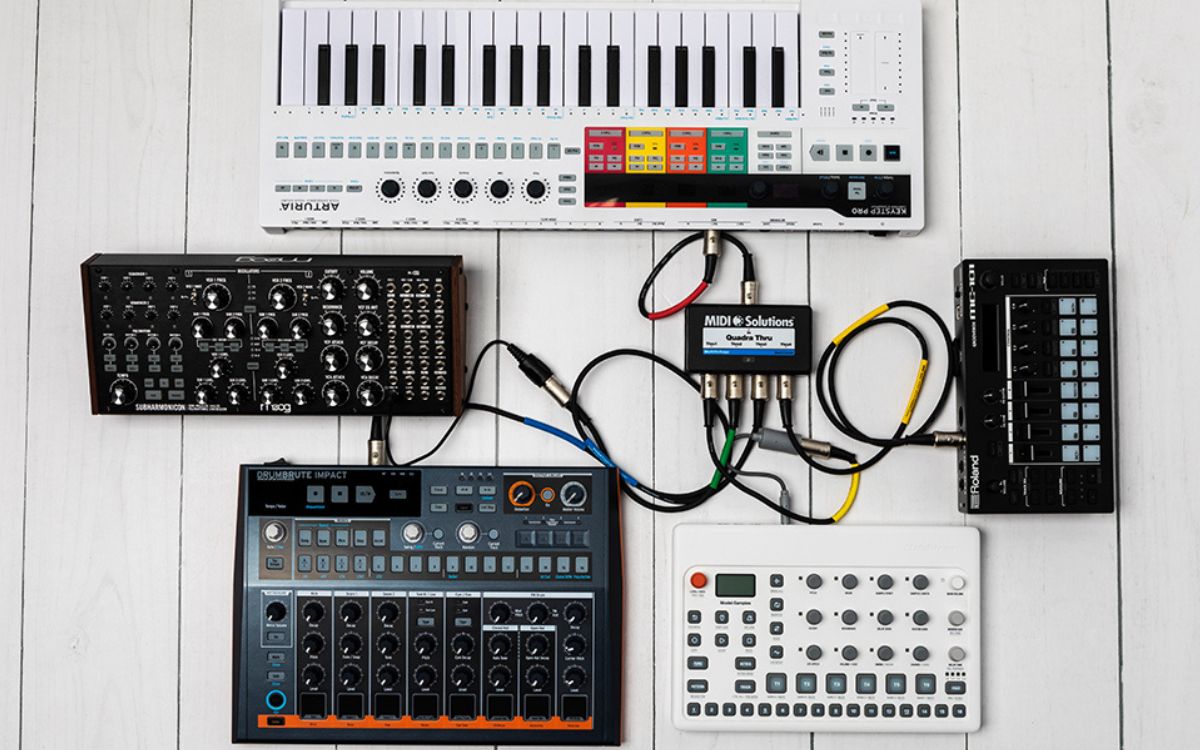
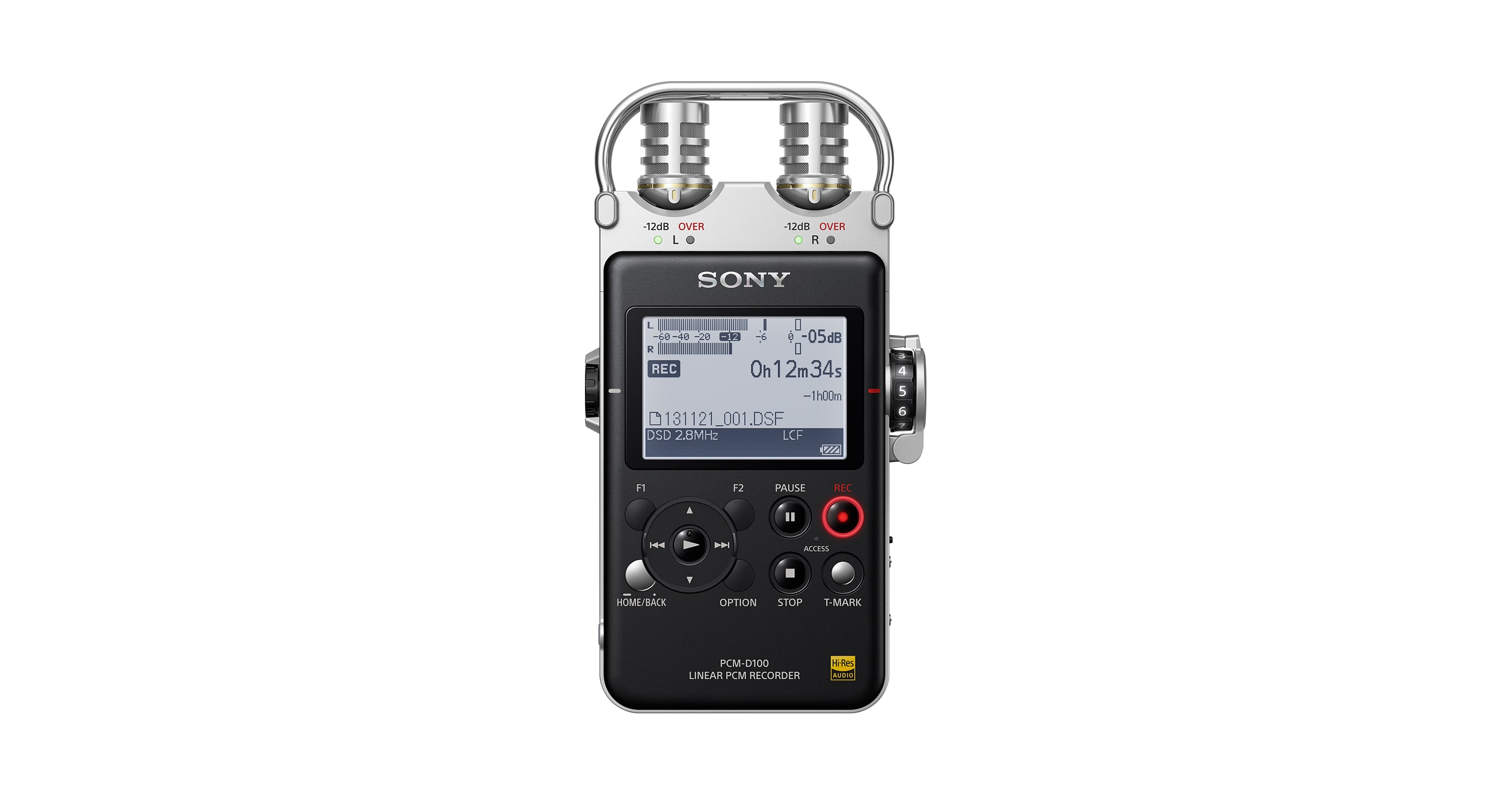
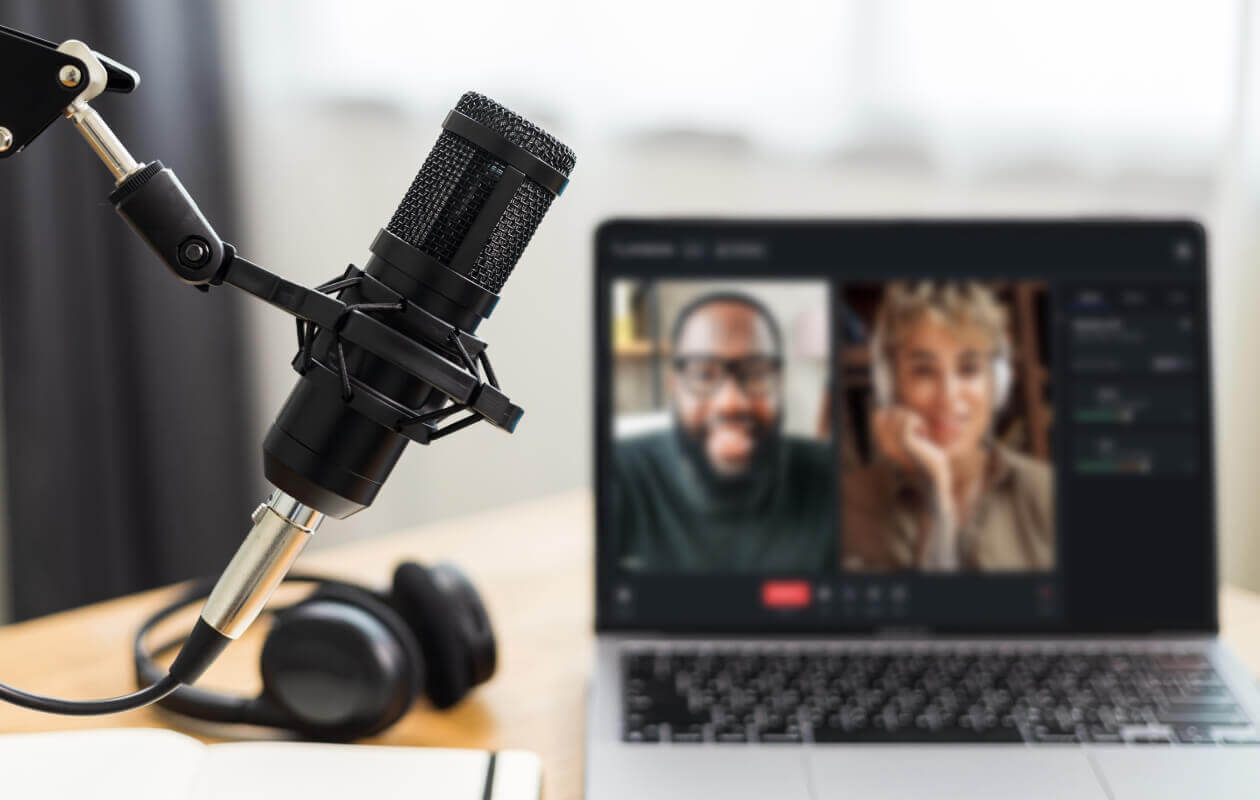
Today, the recording equipment industry is characterized by its hybrid nature, combining the warmth of analog gear with the flexibility of digital tools. High-quality condenser microphones and audio interfaces remain essential for capturing pristine audio. The trend towards mobility and compactness has led to the development of portable recorders and interfaces, allowing musicians to record anywhere, anytime.
Looking Ahead: The Future of Recording
The future of recording equipment lies in further integration of technology, with advancements in AI, spatial audio, and immersive listening experiences shaping the next wave of innovations. As we look forward, the possibilities are as exciting as the journey has been from those first mechanical devices to today’s digital workstations.
Conclusion
The evolution of recording equipment is a testament to human ingenuity and the relentless pursuit of capturing sound in its purest form. From the analog tape machines that recorded the soundtracks of generations to the digital workstations that democratize music production, each innovation has left an indelible mark on the industry. As we continue to explore new sonic frontiers, the legacy of these technological advancements will undoubtedly inspire future creations in the ever-evolving landscape of audio recording.